Find People: Search, Filter, and Reveal Work Emails
Read time: 5 Minutes, 50 Seconds
Find People is where you search the profiles you have collected: filter by role, by where someone works today and where they worked before, or by who is hiring right now, then reveal a work email in one click.
This guide walks through the screen from top to bottom. If you have not installed the browser extension yet, start with Installing and Using The Stack Chrome Extension: it is what captures the profiles you search here and what runs the email reveals.
The Screen at a Glance
Open Find People. Filters are on the left and results are on the right. Above them is a summary of the whole search:
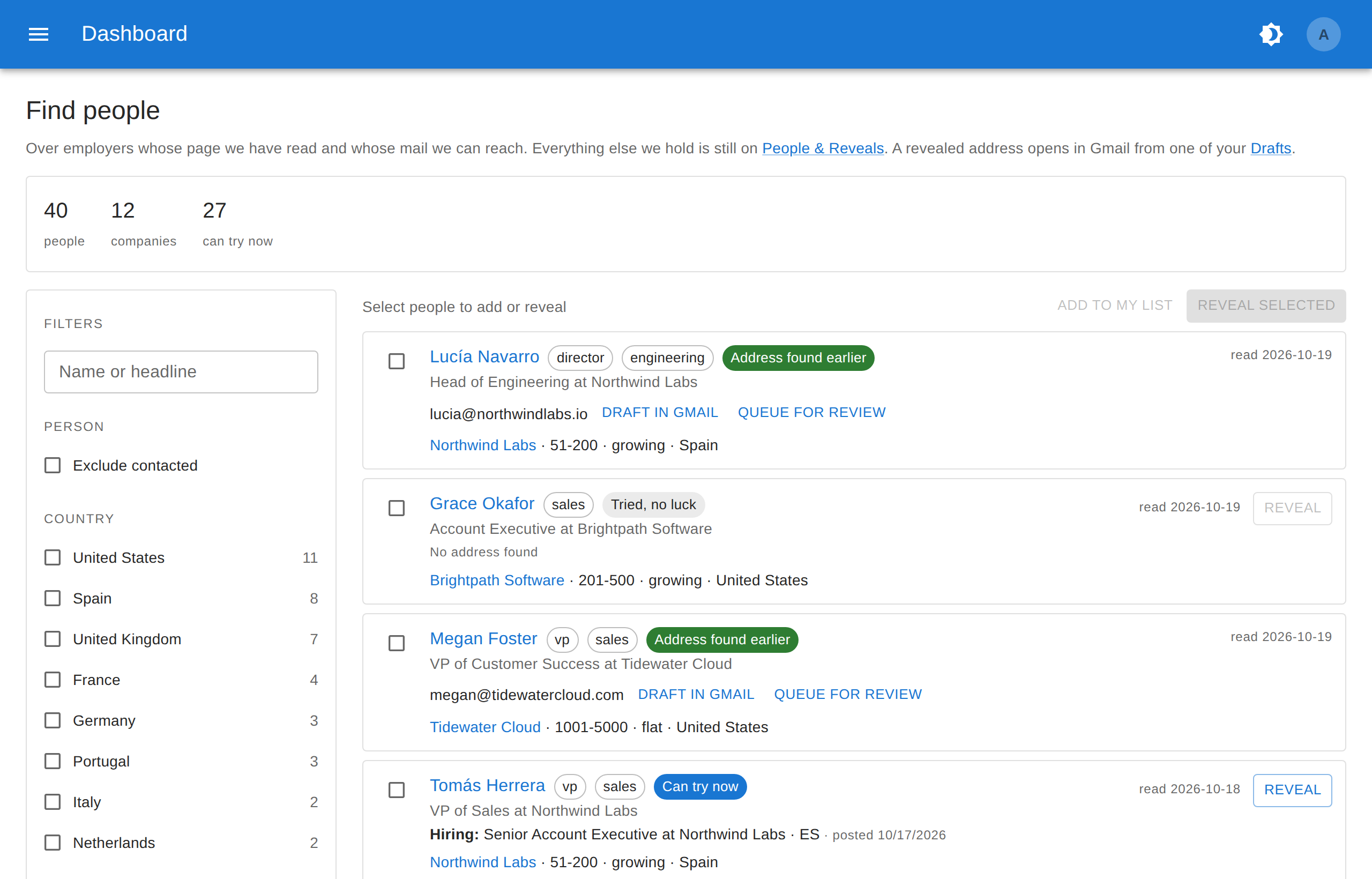
- people: everyone who matches the current filters.
- companies: how many employers those people work at.
- can try now: how many of them have an email address you can try to reveal today.
What the search covers. Find People only shows people whose current employer is fully known: we have read the company’s page, we know its country and sector, and its email domain accepts mail. Those are the people you can actually reveal an address for. Everyone else you have captured is still on People & Reveals. You can also bring them into this search with Include employers we cannot reach, described below.
Filtering
Every filter shows a count beside each option: how many people you would get if you picked it. Pick as many as you like, and press Clear all to start over.
Person
- Name or headline: free text, matched against names and headlines.
- Exclude contacted: leaves out anyone you already have an email for in your Outbox, waiting or sent.
- Country and Location: where the person is. Location suggests cities and metro areas as you type.
- Seniority: read from their job title (c-level, vp, director, manager, senior, founder…).
- Department: what the job is, also read from the title: sales, engineering, hr, finance, product… Not categorised is a real option and often the largest one, because many titles do not say.
Current Company
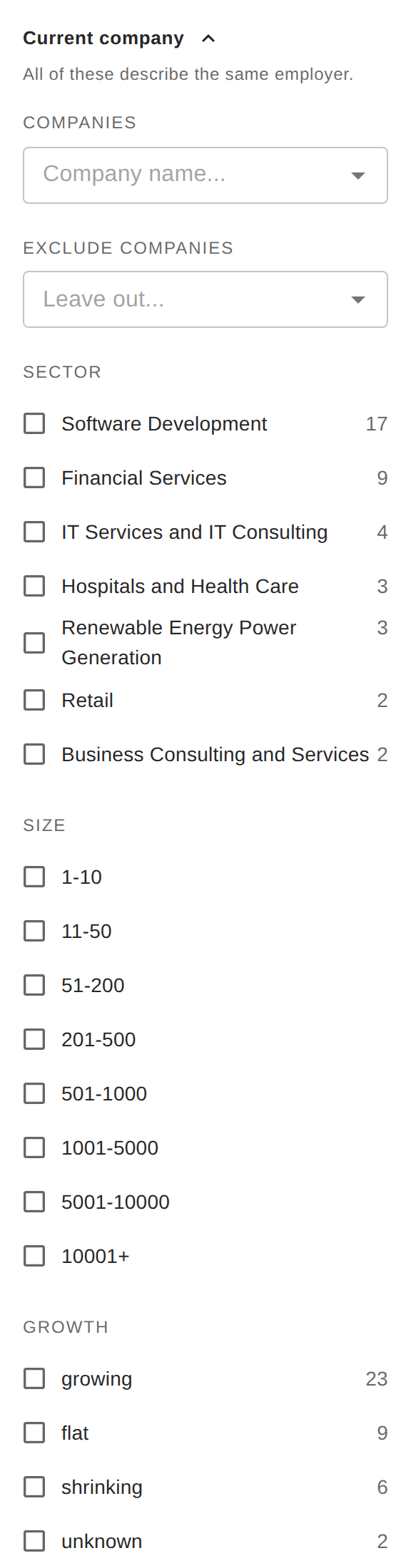
All of these describe the same employer, the one the person works at now:
- Companies and Exclude companies: search by name to include or leave out specific employers.
- Sector: the employer’s industry as LinkedIn lists it.
- Size: the employer’s headcount band.
- Growth: whether the company’s headcount is growing, flat or shrinking, or unknown if we have no reading yet.
Past Company
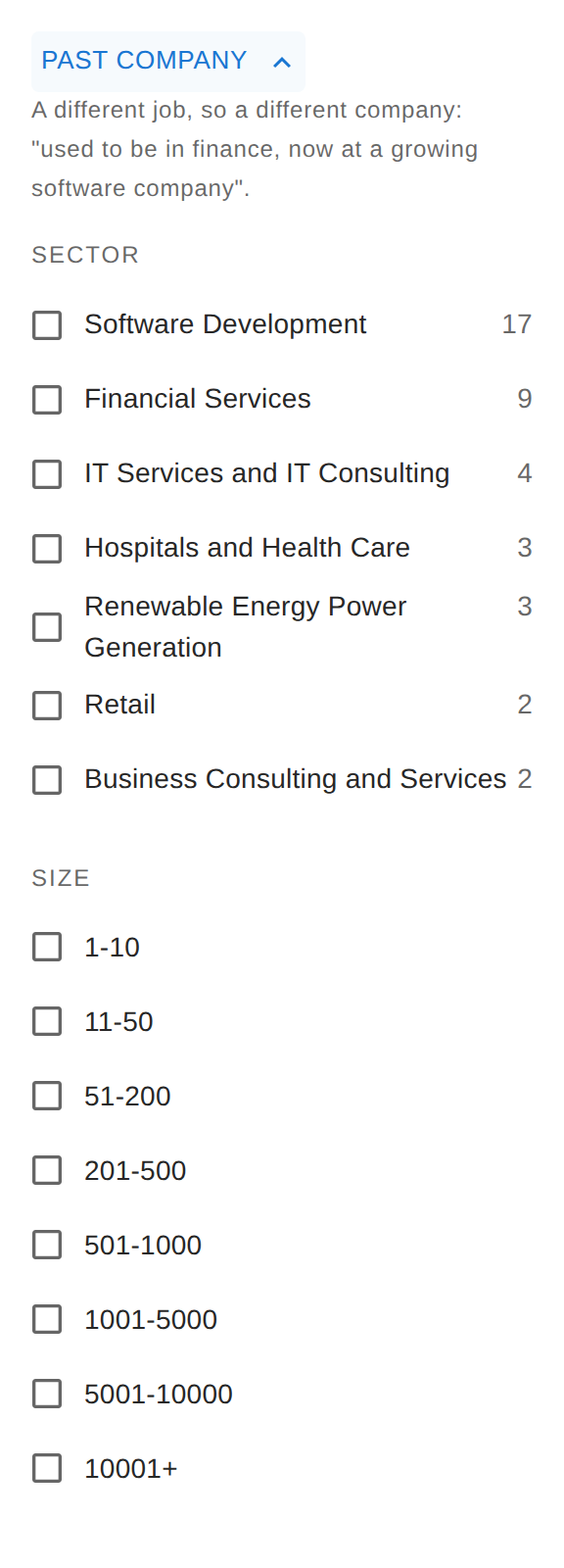
Past company filters on a previous job, which is a different company from the current one. Use it to find someone by their background: “used to be in finance, now at a growing software company”. You can filter the past employer by sector and size.
Hiring Intent
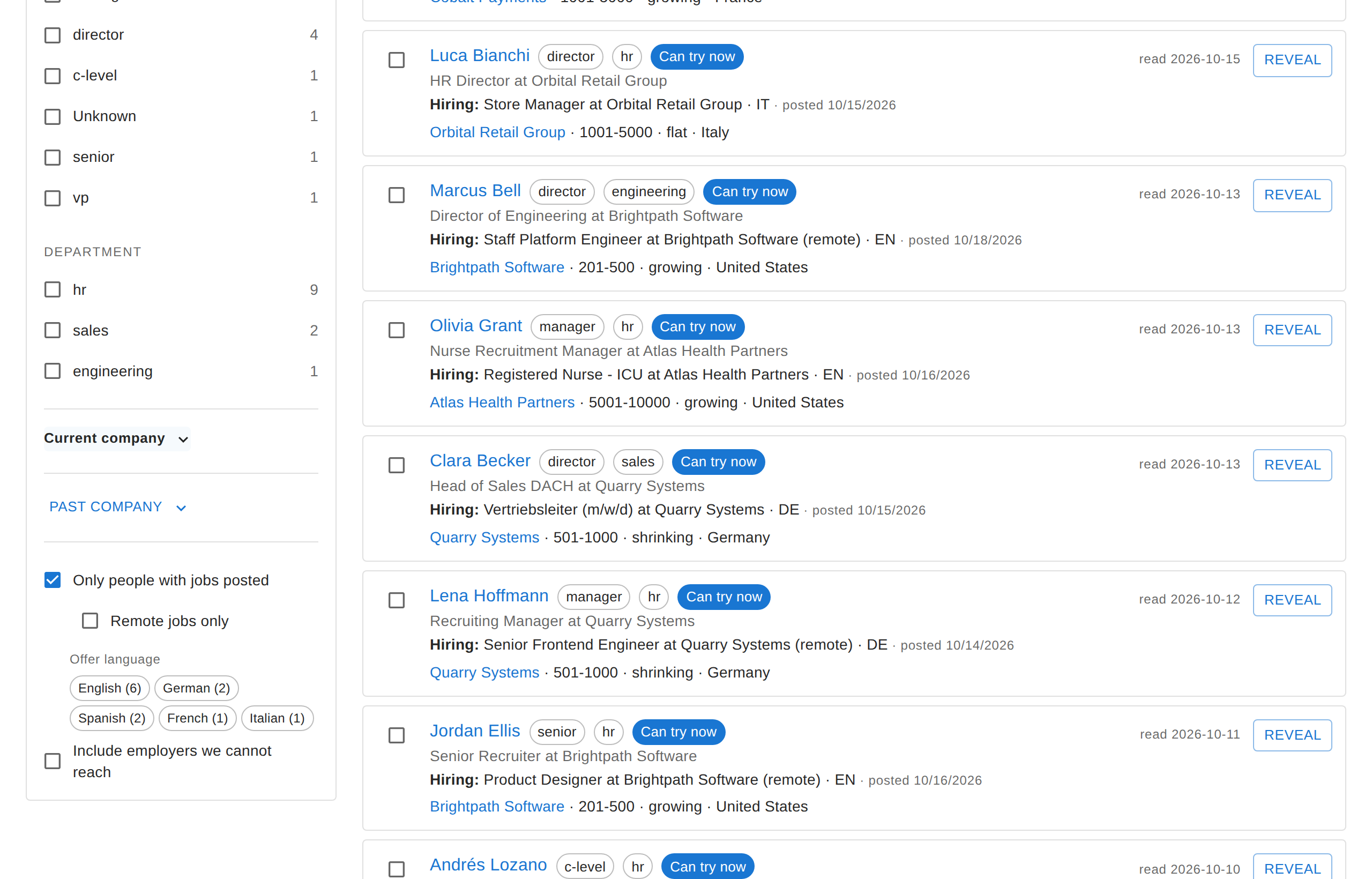
- Only people with jobs posted: people named as the poster of a job we have captured. In practice these are recruiters and hiring managers with an open role right now, which makes them good people to contact.
- Remote jobs only: narrows it to posters whose newest job is marked Remote. Most postings do not say either way, and those are left out.
- Offer language: the language the job ad is written in.
Each of these results shows a Hiring: line with the role, the company, whether it is remote, the ad’s language and when it was posted.
Include Employers We Cannot Reach
Tick this to also include people whose employer we know only partly: no email domain yet, or no sector or country. You will be able to read their rows, but most of them cannot be revealed.
A Worked Example
Say you want people who used to work in finance and now work at a growing software company:
- Under Current company, tick Software Development in Sector and growing in Growth.
- Open Past company and tick Financial Services in Sector.
The summary updates straight away:
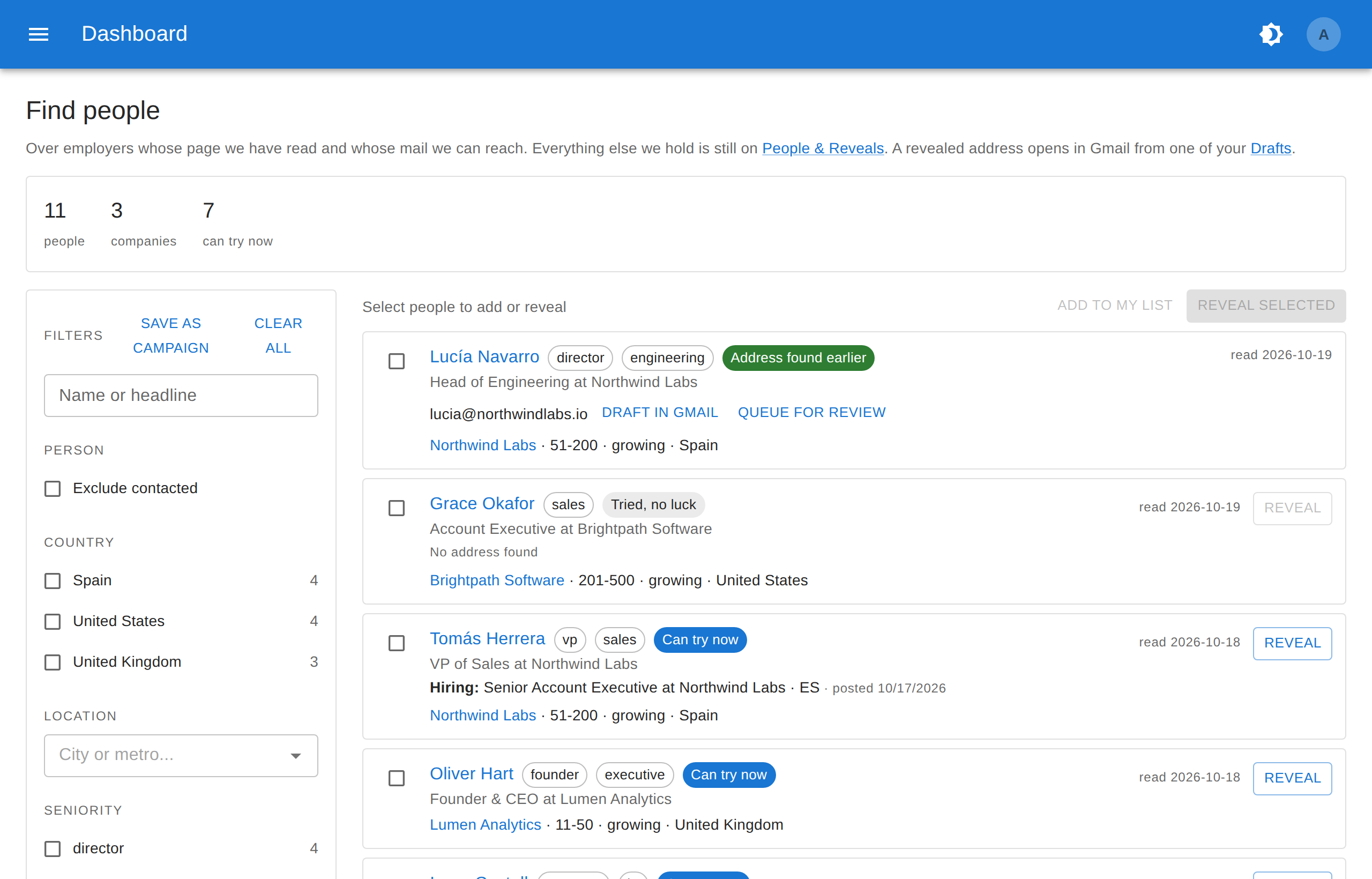
Eleven people at three companies match, and seven of them can be tried now. The results are ordered with the most recently read profiles first.
Reading a Result
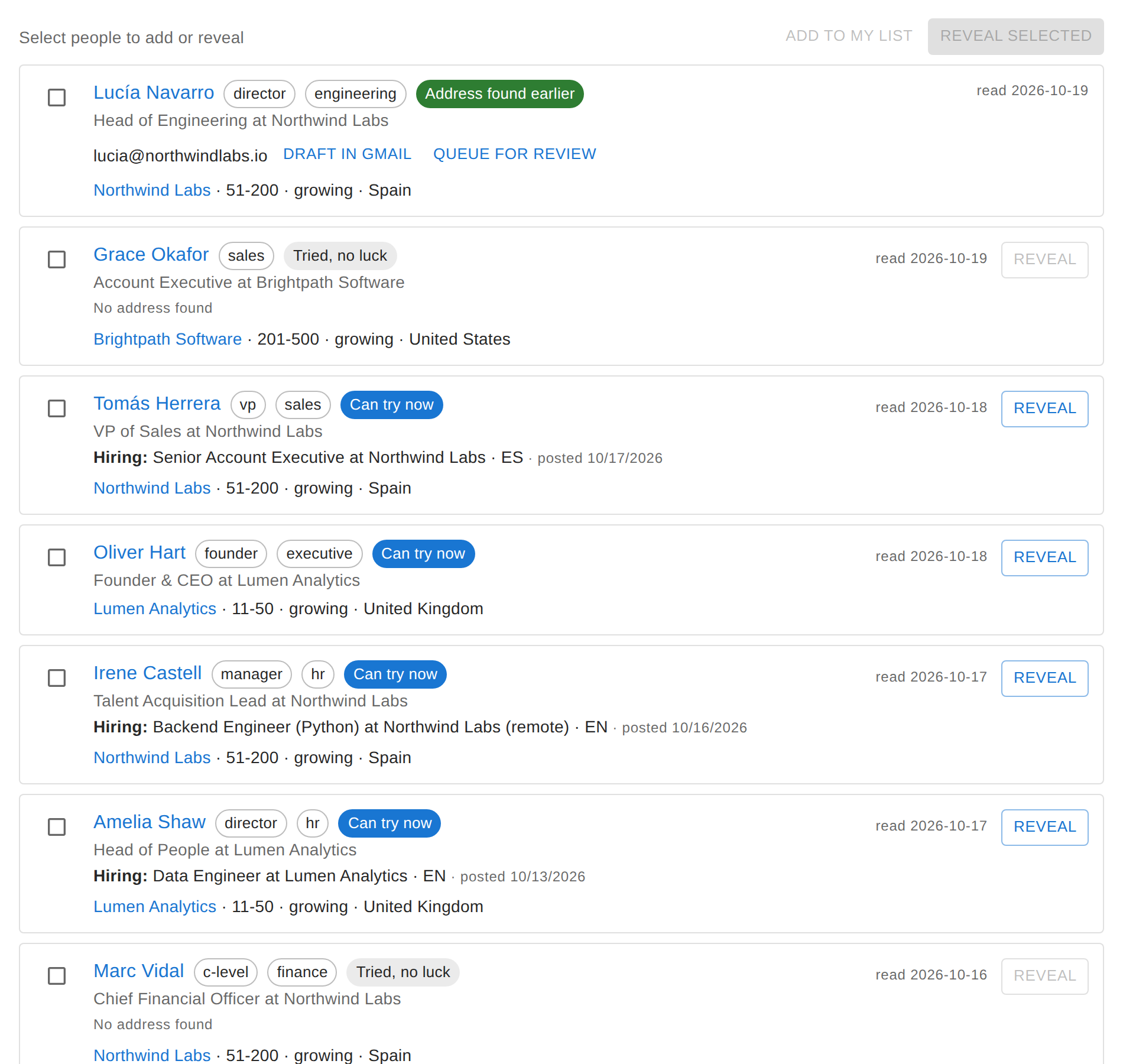
Each row shows:
- the person’s name (click it for their full profile), with chips for their seniority and department;
- their headline, and the Hiring: line if they posted a job;
- their employer, with its size, growth and country;
- read: the day we last read their profile. People change jobs, so an old date is worth a second look.
The coloured chip is the email state, and it tells you what to do next:
| State | What it means | What you can do |
|---|---|---|
| Address found earlier | We have an address for them at their current employer. It answered when we last checked, but it may be out of date. | The address is shown on the row, with Draft in Gmail and Queue for review. |
| Can try now | Their employer accepts mail and we have never tried this person there. | Press Reveal. |
| Tried, no luck | Every address we can build has been tried at their employer. | Nothing for now. Reveal is greyed out. |
| Nowhere to try | We have no email domain for their current employer. | Open the employer’s page so we can learn its domain (see below). |
Revealing and Reaching Out
- One person: press Reveal on their row.
- Several people: tick their checkboxes and press Reveal selected, or Add to my list to keep them on your People & Reveals list without revealing.
Reveals run in your own browser through the extension, so it needs to be installed and your browser signed in to a Google account. While a batch runs, a banner at the top counts the addresses found and tried, and each address appears on its row as it arrives. Lookups that are waiting show a Run now button.
Once an address is shown you have two options:
- Draft in Gmail opens a message to them in Gmail, filled in from one of your Drafts templates.
- Queue for review puts a personalised email in your Outbox. Nothing is sent until you open it there and press Send now.
When Nobody Matches
An empty result can mean two different things, and the screen tells you which:
- “Nobody matches that.” Nobody you have captured fits these filters, so widen them.
- “Nobody at an employer we can reach, but we hold N people matching this at employers we cannot.” The people exist, but their employers are outside the search. Press Show them anyway to see them.
Below the results there is often a panel listing employers here that have no email address yet, with how many people each one would unlock. Press Open on one: it opens the company’s LinkedIn About page, which is where its website is, and visiting it with the extension running gives us the domain, which makes everybody there reachable at once.
Save a Search as a Campaign
When a search is worth repeating, press Save as campaign at the top of the filters:
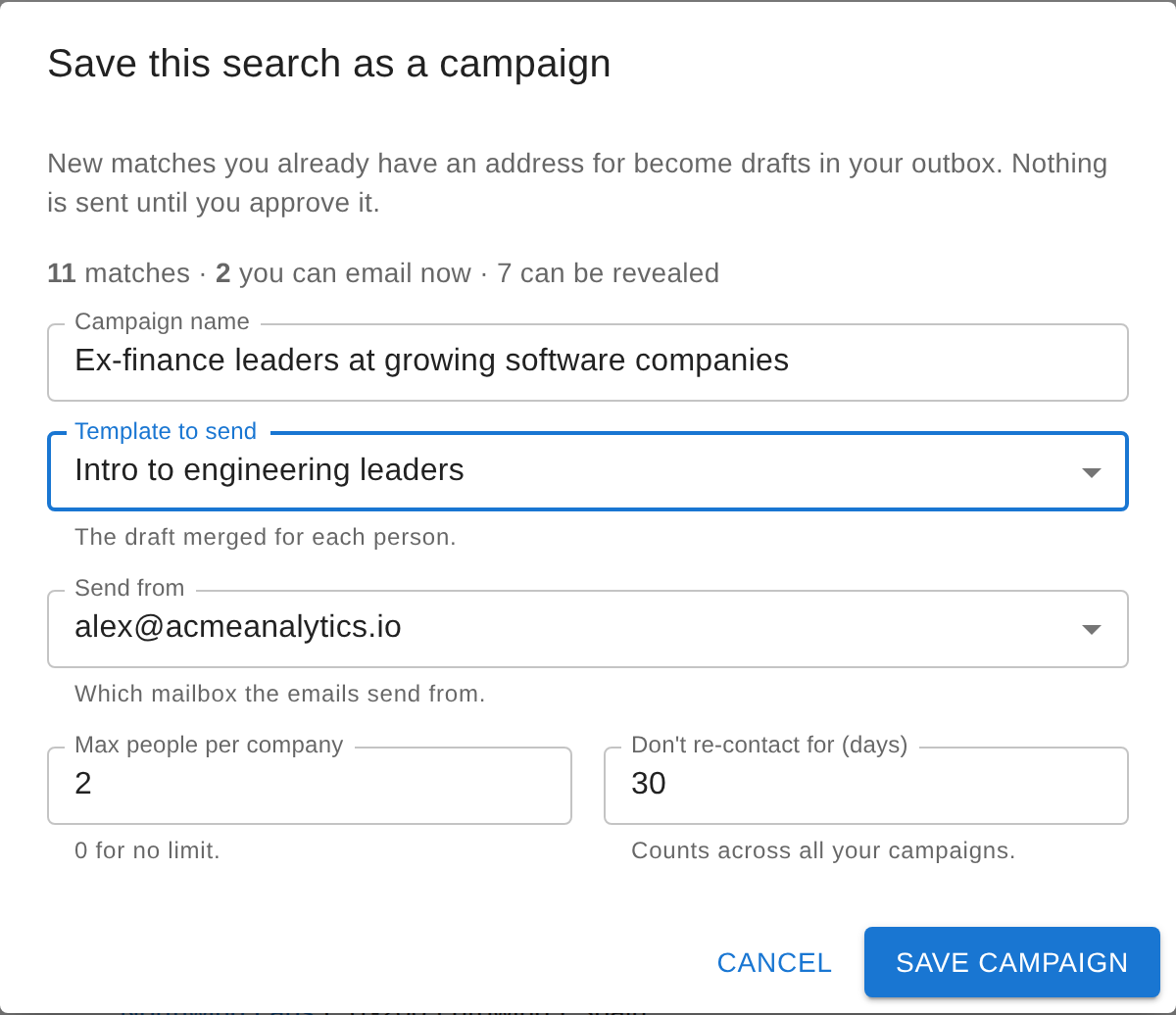
The dialog tells you how many people match, how many you can email right now and how many can still be revealed. Pick a name, the template to send and the Gmail account to send from, and set two limits:
- Max people per company: so you do not email half of one team (0 for no limit).
- Don’t re-contact for (days): a cooldown that applies across all your campaigns.
From then on, every new match you have an address for becomes a draft in your Outbox, and nothing is sent until you approve it. Manage, pause or run your campaigns from Campaigns.
Prefer an API?
The people we hold, and the work emails we already have for them, can also be queried from your own code. The API search is simpler than this screen (keywords, country, employer), and revealing new addresses stays in the web app. See the People Search API and the API Quickstart Guide.