People & Reveals: Add People and Reveal Their Emails
Read time: 3 Minutes, 56 Seconds
People & Reveals is your own list: the people you have added or opened on LinkedIn, what we know about each of them, and their work email once it is revealed.
Find People searches everyone we can reach. People & Reveals is narrower: the people you chose. This guide covers how they get onto the list, how to read it, and how to reveal their addresses. If the browser extension is not installed yet, start with Installing and Using The Stack Chrome Extension.
The Page at a Glance
Open People & Reveals:
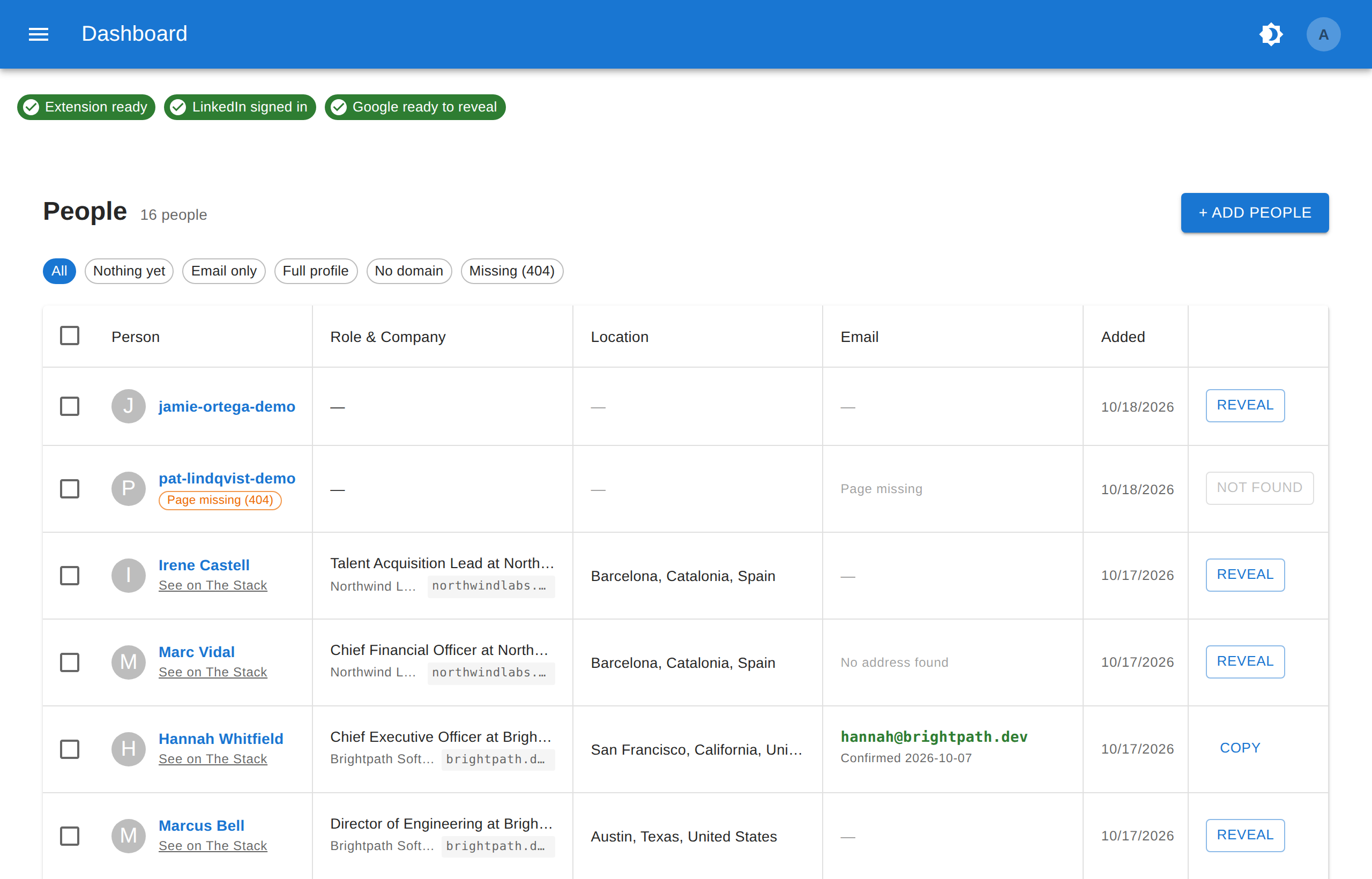
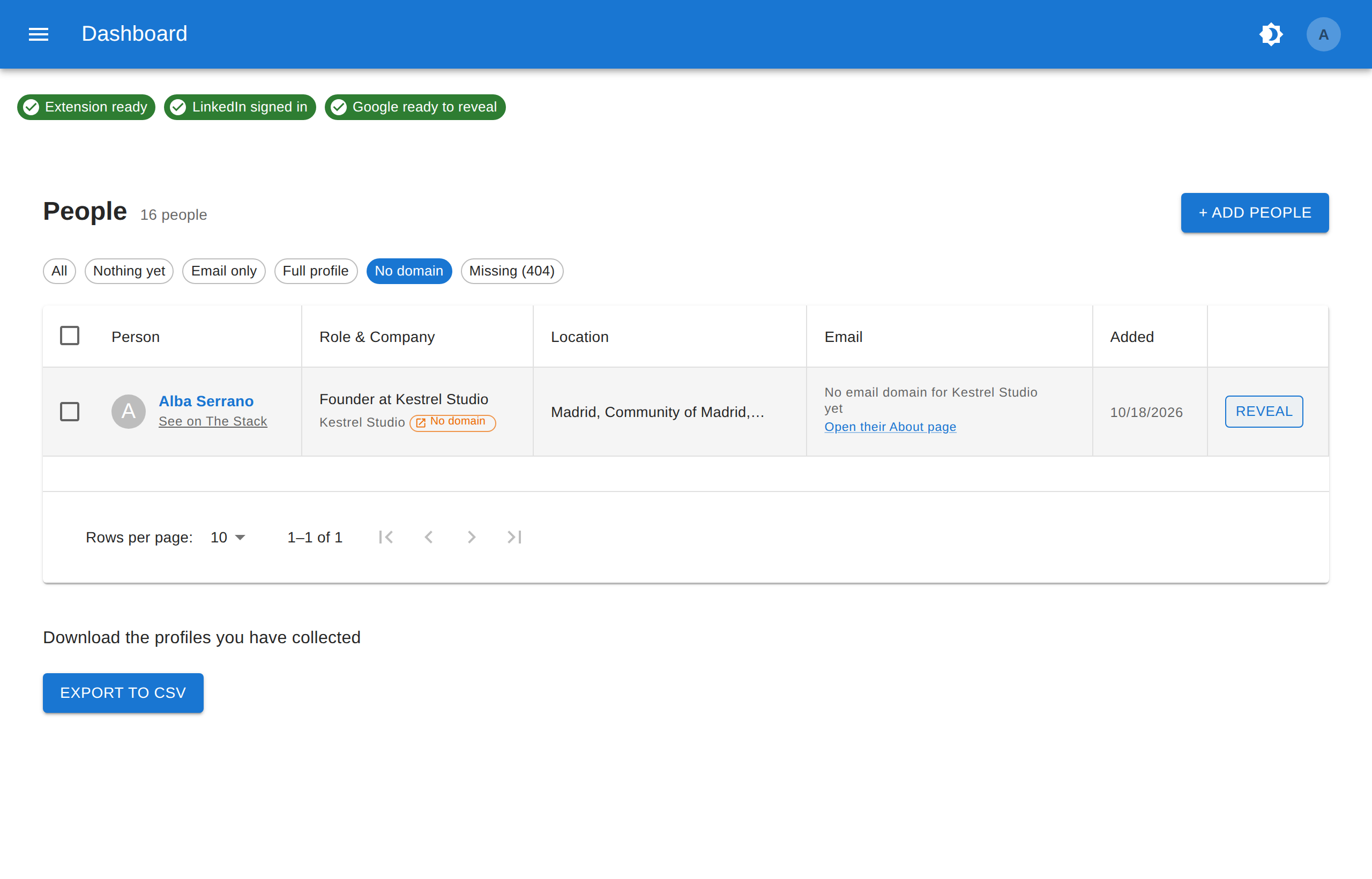
The three chips at the top say whether everything is in place:
- Extension ready: the extension is running in this browser. Without it nothing can be downloaded or looked up, though addresses you already have still show.
- LinkedIn signed in: you are signed in to LinkedIn here, so the profiles you open carry data to read.
- Google ready to reveal: you are signed in to a Google account, which revealing an email needs. Being signed out of Google only stops reveals, not collecting.
A red or amber chip is a link: click it to open the page that fixes it.
Adding People
The easiest way needs no button at all: with the extension on, every LinkedIn profile you open is added to your list as you read it, without anything being requested on your behalf.
For anything else, press + Add people:
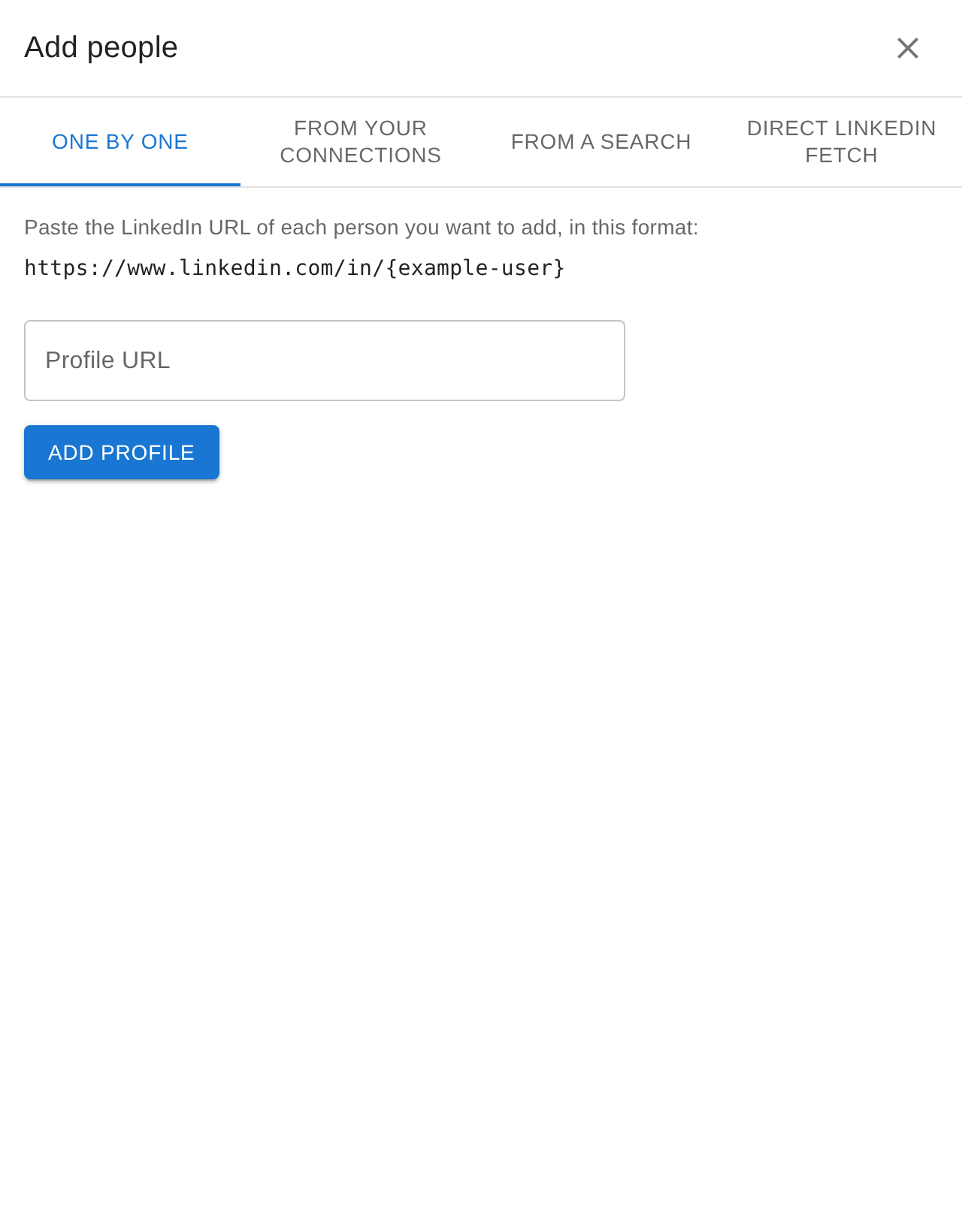
- One by one: paste a profile URL, such as
https://www.linkedin.com/in/someone, and press Add profile. - From your connections: adds everyone you are connected to on LinkedIn. It can take a while with a large network.
- From a search: runs a LinkedIn people search by company, location and keywords, reading as many result pages as you ask for.
- Direct LinkedIn fetch: downloads the full profile of everyone on your list straight from LinkedIn, at six requests per person. Opening their page gets the same details for free, so use this only when you need many profiles without browsing them.
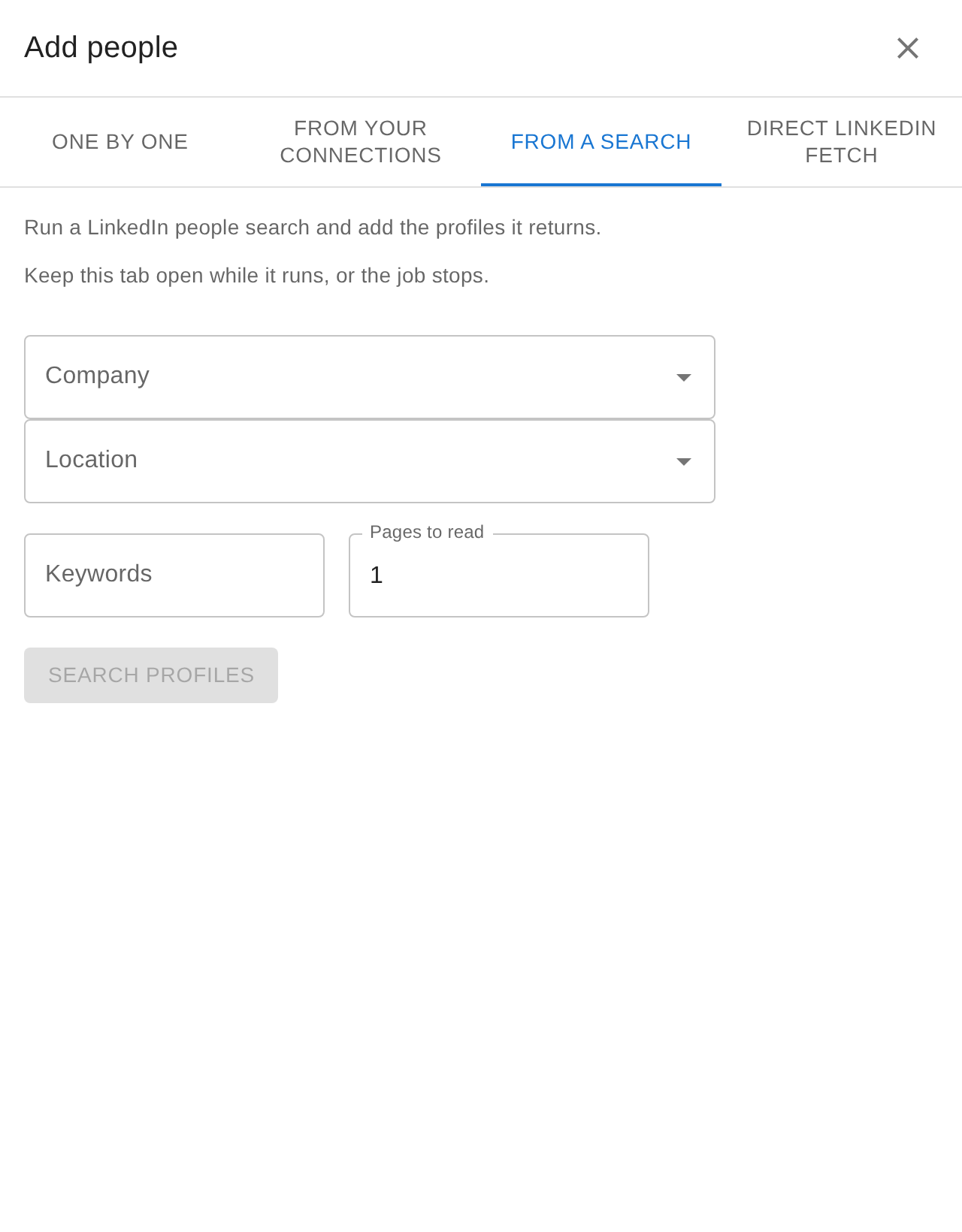
The connections and search imports run in your browser: keep the tab open while they work, or they stop. A search you interrupt is kept, and you can Relaunch or Delete it from the same tab.
Reading the List
Each row shows the person and a link to See on The Stack (their full profile), their role and employer, the employer’s email domain when we have one, their location, the email, and when they were added.
The filters above the table answer “who do I still have nothing for?”:
| Filter | Who it shows |
|---|---|
| Nothing yet | Added, but neither collected nor revealed. |
| Email only | An address, but no collected profile. |
| Full profile | Their profile has been collected. |
| No domain | We know their employer but hold no email domain for it, so no reveal can run yet. |
| Missing (404) | LinkedIn says the profile no longer exists. |
Revealing an Email
Press Reveal on a row, or tick several rows and press Reveal N to do them in one go. While a person is being looked up the row says Looking…, and with several, a line above the table counts Looking up 3 of 8.
When the address is found it appears in green, with the date it was confirmed and a Copy button. Under it are the same two actions you get on their profile and in Find People:
- Draft in Gmail opens a message to them in Gmail, filled in from one of your Drafts templates.
- Queue for review puts that personalised email in your Outbox, where nothing is sent until you press Send now.
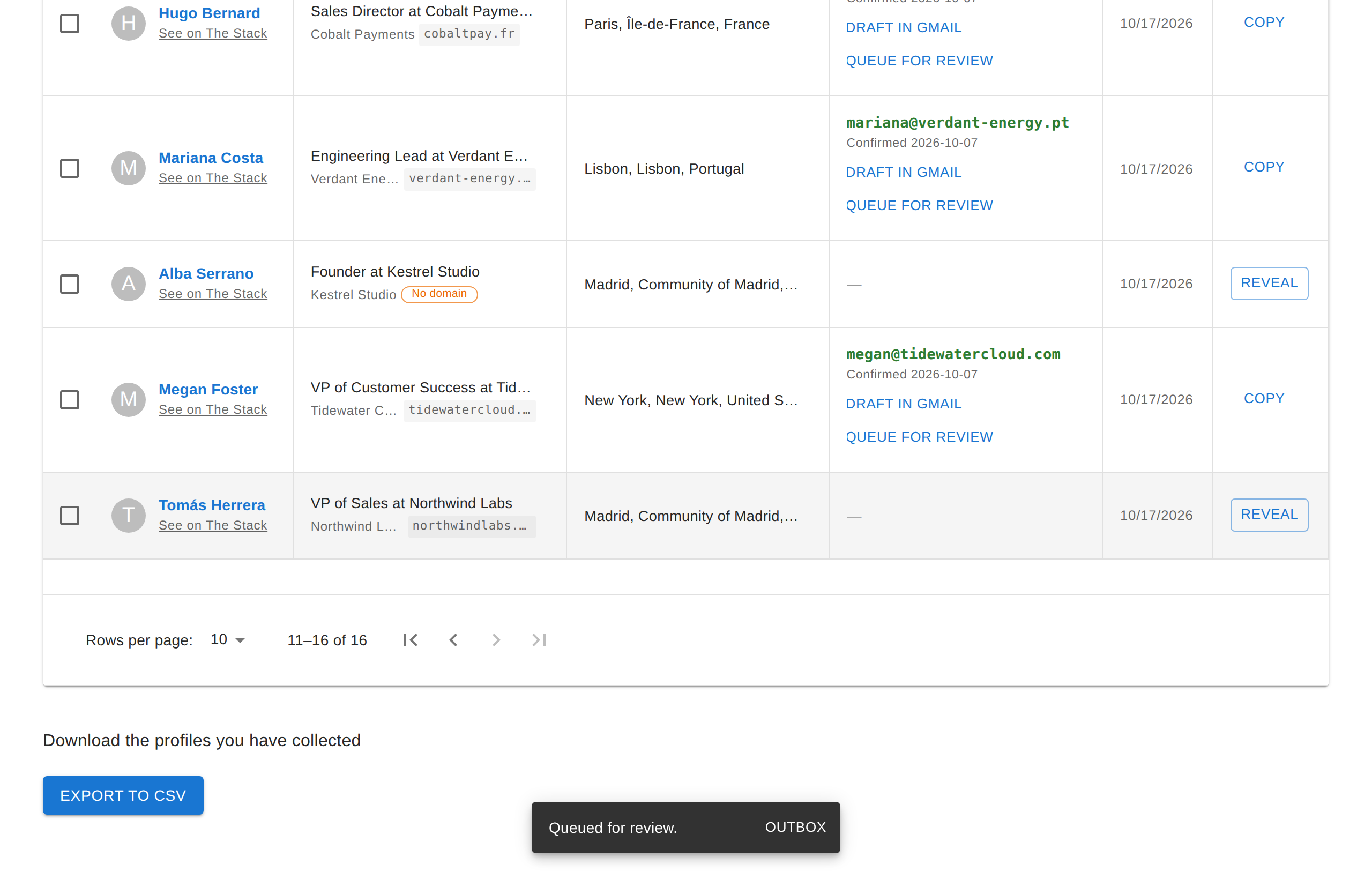
When the address is not found, the row says why and, where there is something to do about it, offers the page that fixes it:
- No address found: every address we can build at their employer has been tried.
- No email domain for Company yet, with Open their About page: we know the company but not its website. Its LinkedIn About page is where the website is; open it with the extension on, and everybody at that company becomes revealable at once.
- Not collected yet, with Open their profile: open their LinkedIn page once so we can read it.
- Previous: with an address in grey: the address we hold is from an employer they have left. Press Re-reveal to look for one at their current company.
- Page missing: LinkedIn no longer has the profile, so there is nothing to reveal.
Reveals run in your own browser through the extension, which is why it needs to be installed and signed in to Google. If Google or LinkedIn slows us down the row says Paused for now: try again a few minutes later.
When LinkedIn Blocks the Account
If LinkedIn asks you to verify your account, a red banner says so. Being signed in does not help while that stands: open linkedin.com, do what they ask, then press Check again. Nothing is sent to LinkedIn until that check goes through.
Exporting
Export to CSV, below the list, downloads everything you have collected: one file of people and one of their work history.
Next Steps
- Search beyond your own list with Find People.
- Write a template, then send from your Outbox or set up a campaign.