Installing and Using The Stack Chrome Extension
The Stack Chrome extension connects your browser session with The Stack platform. It captures LinkedIn profiles, company pages, and job postings as you browse, powers Google Maps review collection, and verifies work email addresses directly from your browser.
What the Extension Does
The extension runs locally in your browser and handles four tasks:
- LinkedIn Profile Capture: Reads profile details and work history when you view a lead on LinkedIn and adds them to your workspace.
- Company & Job Capture: Captures company details, growth metrics, and active job postings (including who posted the role) as you browse LinkedIn.
- Email Verification: Verifies corporate email addresses for discovered leads without sending emails or risking bounces.
- Google Maps Collection: Collects place details and customer reviews directly from your browser in the Google Maps Explorer.
Installing in Developer Mode
The extension is distributed as a zip archive rather than through the Chrome Web Store. Installation takes under a minute.
1. Download the archive
Download the production build. You’ll be asked to log in to The Stack first: thestack-extension.zip
2. Extract to a permanent folder
Extract the zip file to a folder you will not accidentally delete. Your browser loads the extension files directly from this folder: if you move or delete it, the extension will stop working.
Recommended locations:
- macOS / Linux:
~/Extensions/thestack - Windows:
C:\Extensions\thestack
Note on unzipping: Select the folder that directly contains
manifest.json, not an empty outer folder.
3. Open your browser extensions page
Navigate to the extensions manager in your browser address bar:
- Chrome:
chrome://extensions - Brave:
brave://extensions - Edge:
edge://extensions
4. Enable Developer Mode
Turn on the Developer mode toggle in the top-right corner of the extensions page (in Microsoft Edge, this is located in the left sidebar).
5. Load the unpacked extension
Click Load unpacked in the top-left area and select the extracted folder containing manifest.json.
Your browser will display the extension card:
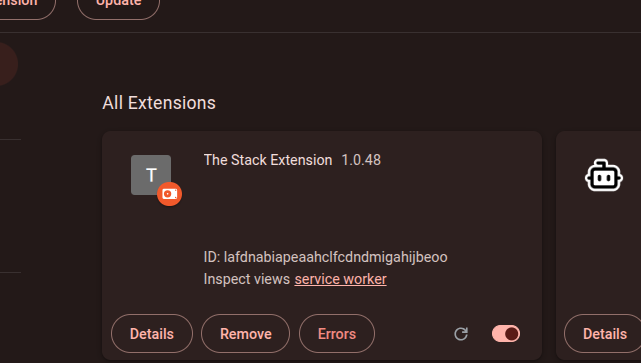
Key controls on this card:
- Version number: Confirms the build currently running.
- Reload icon (circular arrow): Click this whenever you update the files with a newer build.
- Toggle: Enables or disables the extension without uninstalling it.
- Errors: Displays runtime errors if something goes wrong.
6. Pin to toolbar
Click the puzzle-piece icon in your browser toolbar and pin The Stack Extension so it stays visible:

Authentication and Setup
You do not need to type your password into the extension popup manually:
- Log in to The Stack: Sign in to your account at thestack.es/app. The web app syncs your session to the extension automatically.
- Log in to LinkedIn: Open a tab and sign in to your LinkedIn account in the same browser profile.
Checking Readiness
Navigate to People & Reveals in your dashboard. The top banner displays three readiness checks:

- Extension ready: The extension is installed and communicating with the web app.
- LinkedIn signed in: An active LinkedIn session is detected.
- Google ready to reveal: Your browser is signed in to a Google account, which is required for verifying email addresses.
When all three checks show green, your workspace is fully connected.
Capturing Leads, Revealing Emails, and Launching Outreach
Once your workspace is ready, the extension works seamlessly with your dashboard:
- Automatic Capture: As you browse LinkedIn profiles, company pages, and job postings, the extension saves them to your workspace automatically—making them searchable in Find People.
- Bulk Queue & Connection Lists: Import connection lists or queue target LinkedIn URLs directly from the + ADD PEOPLE drawer.
- 1-Click Email Reveals & Outreach: Click Reveal on any lead to find their verified work email. Once revealed, open a personalized message straight in Gmail (Draft in Gmail) or queue it to your Outbox for review.
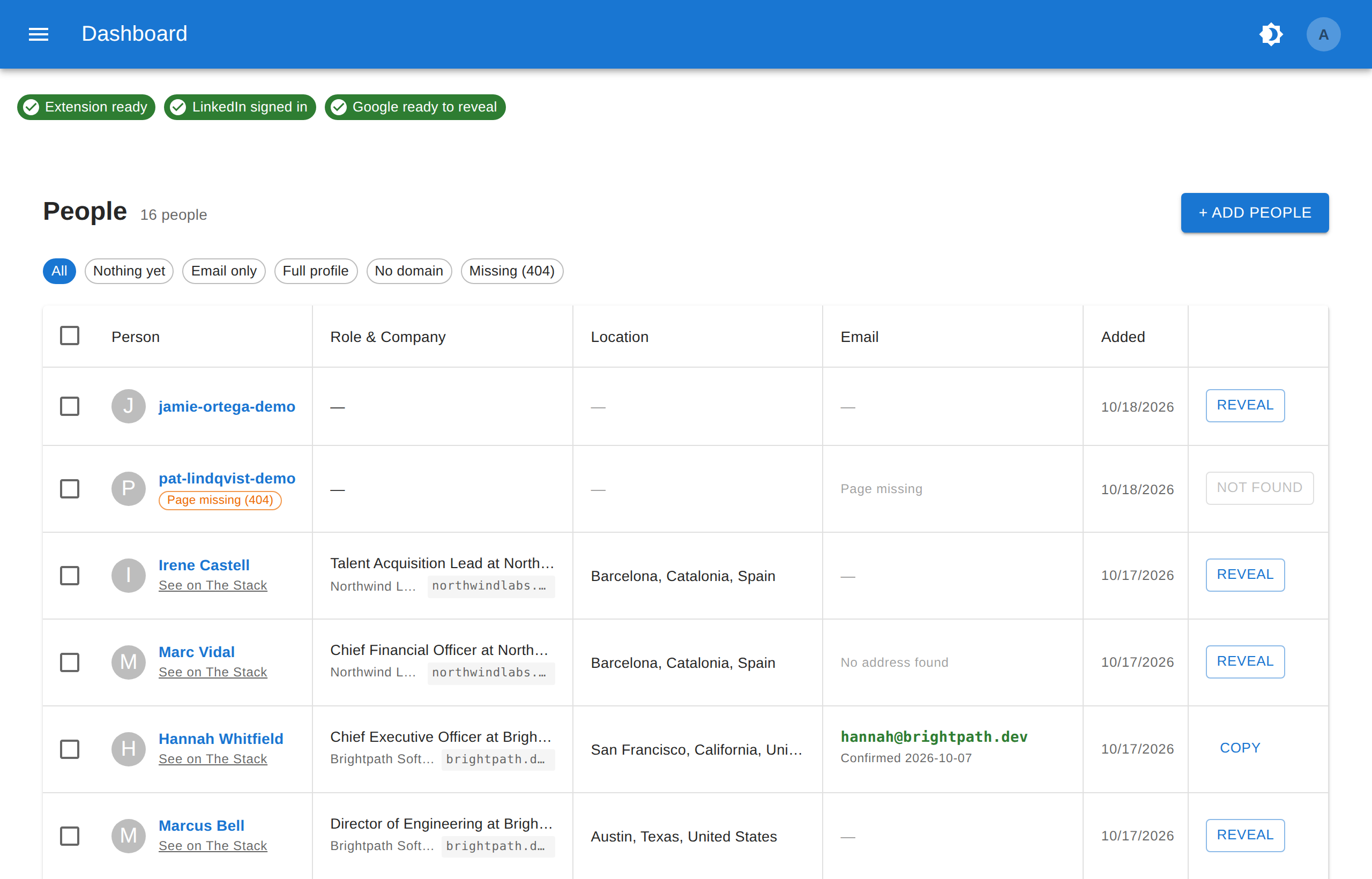
The whole page is covered in People & Reveals: Add People and Reveal Their Emails, and searching beyond your own list in Find People.
Updating the Extension
Chrome does not update an extension loaded in developer mode, so The Stack tells you when a new version is out: the extension’s toolbar icon shows NEW (hover it to see both version numbers), and the web app shows a message with a Download button. To update:
- Download the latest thestack-extension.zip.
- Extract and replace the files inside your existing extension folder.
- Open
chrome://extensionsand click the reload icon (circular arrow) on The Stack card. The version number will update immediately.
Once the new version is loaded, the NEW badge and the message go away.