Use The Stack from Claude, Cursor or VS Code
Read time: 3 Minutes, 31 Seconds
Ask your AI assistant who someone is, where they work now and what they did before. Then have it find their work email, without leaving the chat.
The Stack speaks MCP (Model Context Protocol), so Claude, Cursor, VS Code and any other assistant or agent that supports it can search and reveal for you, using your account.
This guide covers connecting an assistant. To call the same things from your own code, see the People Search API. To search from the web app, see Find People. For researching Reddit discussions and comment threads from your assistant, see Research Reddit Posts and Comments.
What Your Assistant Can Do
Once connected, your assistant has four tools. It picks the right one from what you ask, so you never name them yourself:
| Tool | What it does |
|---|---|
find_person | Finds people by name, narrowed by their employer’s name or domain. |
get_person | A person’s full profile: current role, past experience and education. |
reveal_email | Finds a person’s work email, through your browser. |
reveal_status | Checks on reveals and profile visits in progress. |
You can ask things like:
- “Who is Lucía Navarro at Northwind Labs, and where did she work before?”
- “Find the head of engineering at northwindlabs.io and get me her email.”
- “Here’s a LinkedIn profile: linkedin.com/in/lucia-navarro. Tell me about her and find her work email.”
Paste LinkedIn URLs as they come, tracking parameters and all; The Stack cleans them up.
Connect Claude Code, Cursor, VS Code or Claude Desktop
Open Connect your AI assistant and pick your assistant’s tab. Press Connect (for example Connect Claude Code): it creates a key for that assistant and shows the setup with the key filled in. For Claude Code it is one command:
| |
Cursor, VS Code and Claude Desktop get a configuration file to paste instead. Press Test the connection to check that the four tools are there.
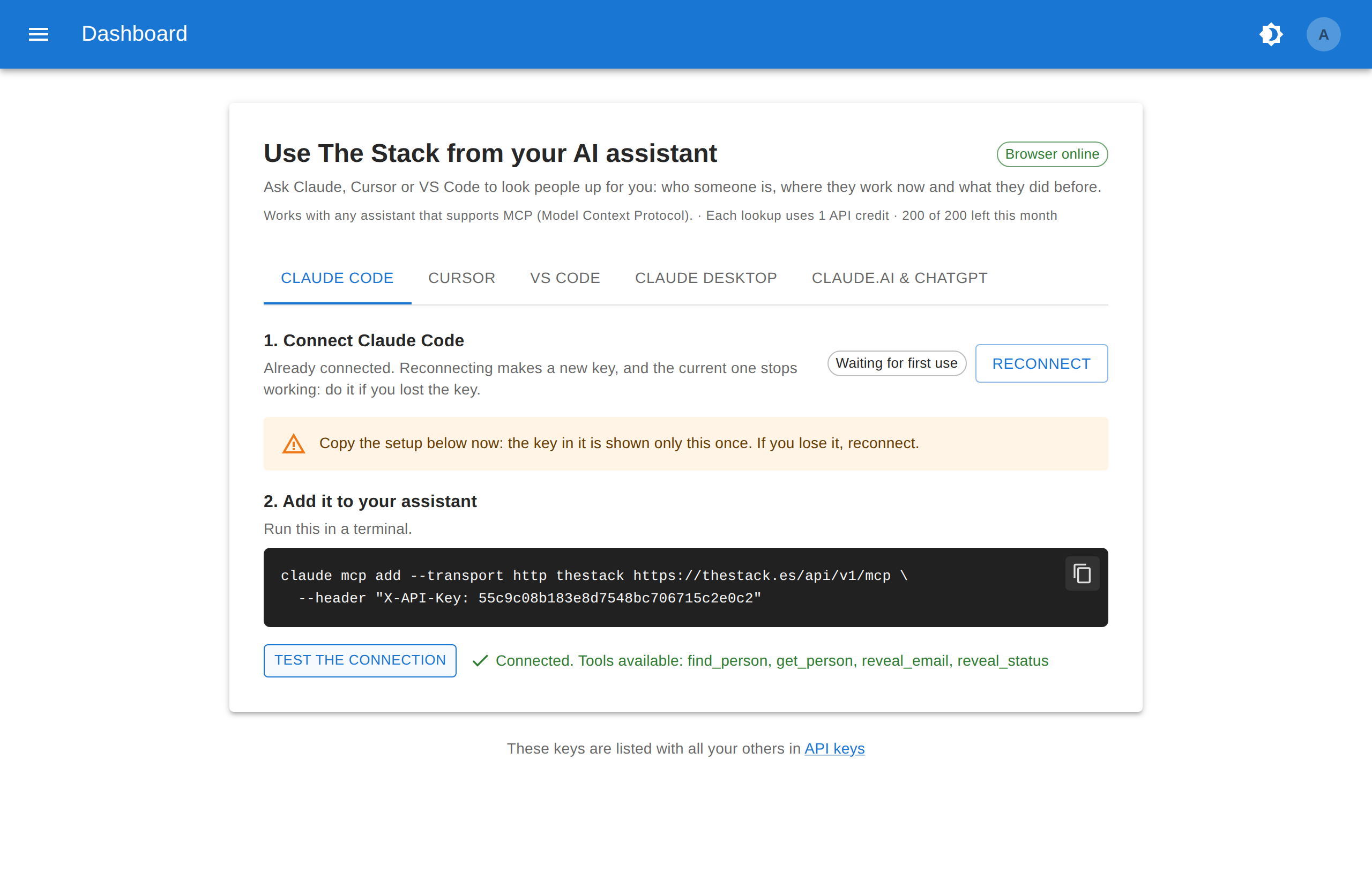
The key is shown only once. If you lose it, press Reconnect for a new one; the old one stops working.
Each assistant gets its own key, listed by name in API keys. Assistants never see your password, and revoking a key there disconnects that assistant without touching the others.
Connect claude.ai
On claude.ai there is no key to copy. Add The Stack as a custom connector with this URL:
https://thestack.es/api/v1/mcp
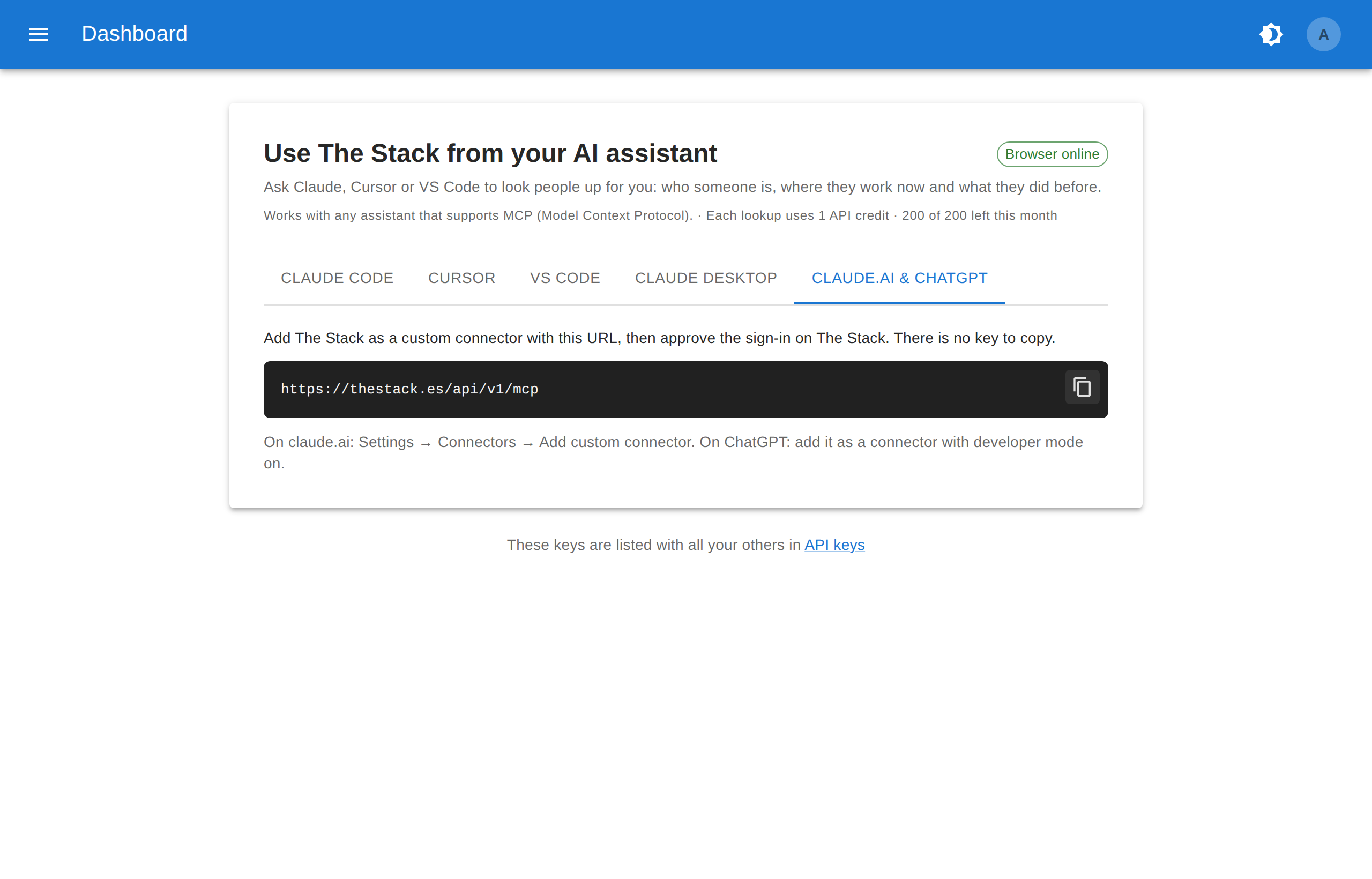
In claude.ai, go to Settings → Connectors → Add custom connector and paste the URL. Claude sends you to The Stack to approve access:
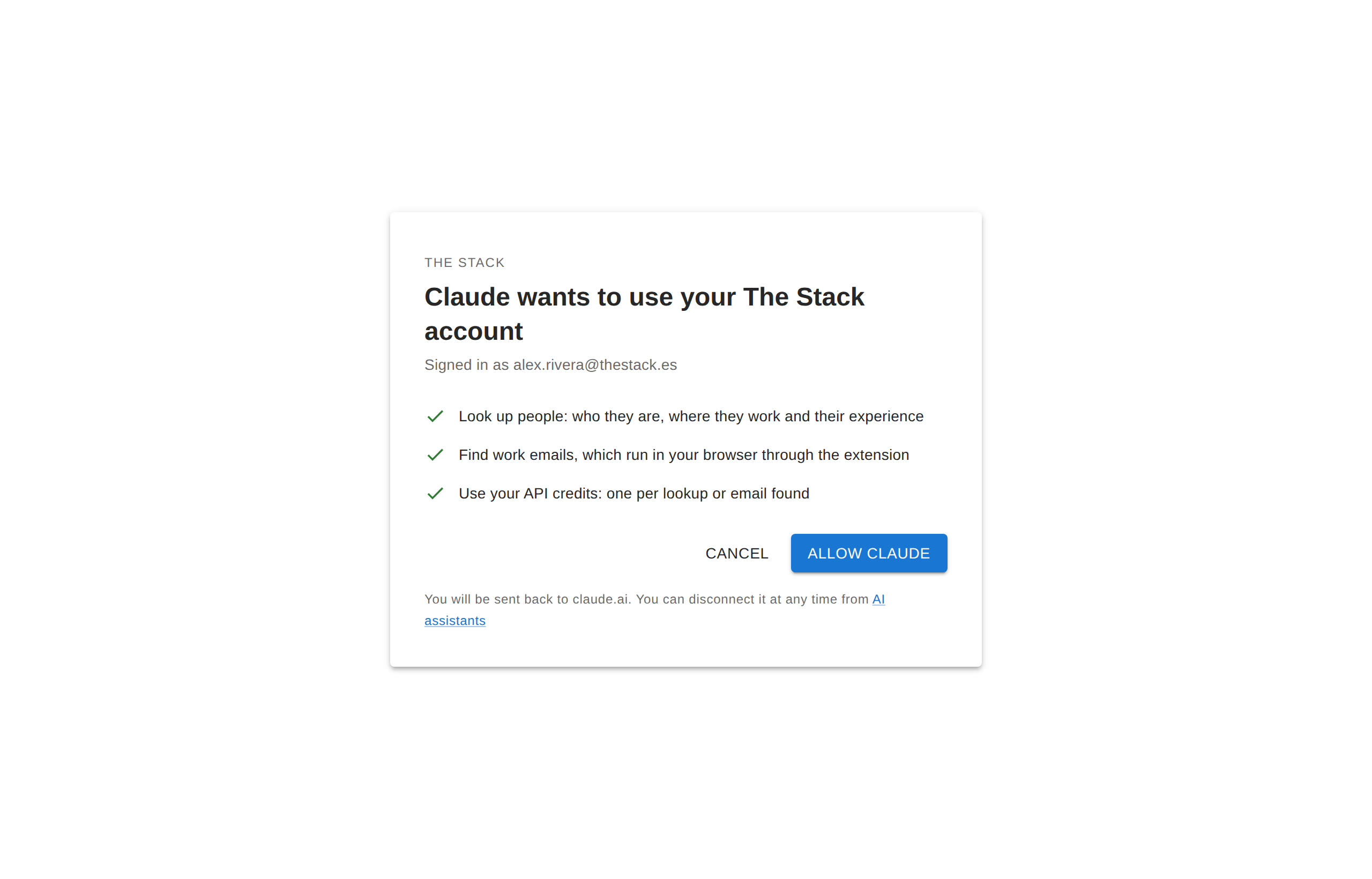
Press Allow and the connector is ready. Its key appears in API keys like any other.
On a personal claude.ai account you can add the connector yourself. On a Team or Enterprise workspace, an owner has to allow custom connectors first; until then, the option does not appear.
How Revealing an Email Works
The Stack finds work emails from your own browser, through The Stack Chrome extension, just as when you reveal from the web app. So a reveal takes a moment:
- Your assistant calls
reveal_email, and the answer is queued. - Your browser picks up the job and finds the address, usually within a minute.
- Your assistant checks with
reveal_statusand hands you the email.
Chrome needs to be open, with the extension installed and signed in to The Stack. The Browser online chip on the Connect page shows whether The Stack can see your browser, and the extension’s Email reveals panel shows the queue:

If your browser is offline, the assistant is told, and tells you what to do (usually “open Chrome”) instead of waiting. When an address is found, Chrome also shows a notification.
Someone We Don’t Have Yet? Paste Their LinkedIn URL
Give your assistant the LinkedIn URL of someone The Stack has never seen, and your browser opens the profile in the background, then reveals the email if you asked for it. If their company has no website on file, it also reads the company’s LinkedIn page to find the domain.
Your assistant follows along with reveal_status, as with any reveal. To keep your LinkedIn account browsing at a human pace, up to 20 new profiles a day are visited.
If we already have the person, you get the profile straight away and nothing is visited.
The Same Thing Over the API
Everything the assistant does is also plain HTTP. With your API key, send up to 25 LinkedIn URLs to enrich, email included:
| |
The answer has a request id per URL; poll GET /api/v1/linkedin/enrich/{id} until it is done. Send "email": false for the profile alone.